THEA1200 can be switched into Workbench mode, where it operates like an original Amiga 1200 (or other models, by modifying the Workbench system settings)
THEA1200 has Workbench 3.1 built in and includes a System Manager application and Personal Paint. Workbench works natively at 720p (1280x720) through THEA1200’s built in custom ReTargetable Graphics (RTG) driver.
To enable Workbench mode you must insert a FAT32 or EXFAT formatted USB stick. The Workbench filesystem images, of which there are two: the System drawer and the Work drawer, are deployed to the USB stick the first time it is used. This gives a great deal of flexibility, since it allows:
- the use of multiple Workbench environments on multiple USB sticks
- different Workbench versions that the default 3.1
- different size Workbench virtual hard disk images to be created
- the Workbench environment to be used with an emulator on a PC or laptop
Note: The USB behaviour described below requires a Firmware upgrade to version 1.0.2. See upgrading the firmware of THEA1200 for more information.
When you start Workbench mode with a USB stick on which Workbench has not yet been installed, THEA1200 will pause for a few seconds (depending on USB stick speed) while Workbench is transferred onto the stick. The drive LED will flash during this time to indicate that a transfer is in progress. If you have multiple USB sticks attached, THEA1200 will search for Workbench starting at the USB stick nearest to the HDMI socket. If Workbench not found, it will transfer Workbench onto the stick nearest the HDMI socket.
Starting Workbench mode
Workbench mode can be entered at any time from the Carousel by selecting Options → Switch to Workbench mode, or THEA1200 can be configured to boot directly into Workbench when powered on by configuring Options → Device options → Boot mode.
The System Manager application
THEA1200 includes a special Amiga application that allows aspects of the Amiga environment and hardware to be controlled directly from within Workbench. The application can be found in the Work drawer within Workbench. The System Manager application provides three tabs: Media, CPU and Display.
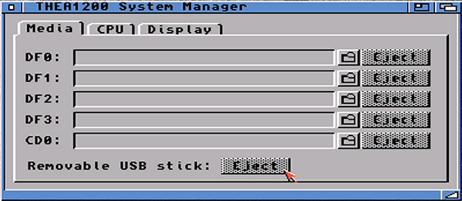
Media tab
The Media tab allows virtual floppy drive images (adf files) to be selected from a USB stick and inserted into four virtual floppy drives. A CDRom ISO file or cue file can also be selected from a USB stick and inserted into a virtual CDRom drive. Handling removable USB sticks safely
THEA1200 makes use of USB sticks, which are removable devices. The original Amiga did not have the concept of removable media other than floppy disks, where the only protection offered against corrupt files was the instruction not to remove a disk while the drive LED is on. The modern operating system equivalent is to not remove a USB stick until it has been ejected or unmounted, and since THEA1200 relies on USB sticks, it adds the ability to safely eject and remove a USB stick to Workbench.
THEA1200 allows the use of two USB stick simultaneously. The first is where the Workbench System and Work hard drive files reside and this cannot be removed while Workbench is running. The second is a truly removable device, the contents of which will be available as the USB Removable drive on Workbench. This USB stick will be automatically available to Workbench when inserted, and to make sure no files are lost or corrupted it must be manually ejected through the System Manager application’s Removable USB stick: Eject button before it is unplugged.
Once a USB stick has been inserted or ejected, if the USB Removable disk window is open, it will be necessary to select the Window → Update option on that window for the contents to refresh.
If the System Manager application is open, the Removable USB stick: Eject button may not change from disabled (greyed out) to enabled on insertion of a USB stick. In this case, re-open the application so that it resynchronises with the USB stick state.
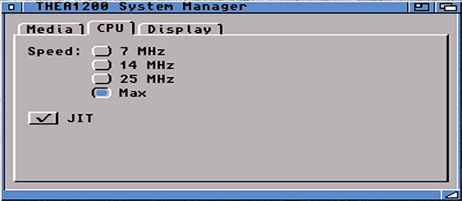
CPU tab
In Workbench mode, THEA1200 can run as a range of configurations, including CPU speed and memory size. Most of these settings can only be changed when the Amiga workbench is not running (see Workbench settings), however the CPU speed can be changed through the System Manager along with the CPU optimisation Just In Time (JIT) switch.
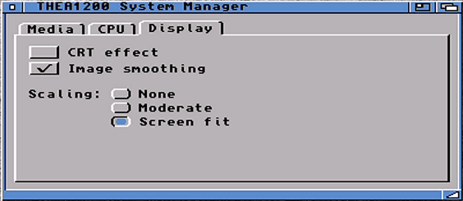
Display Tab
The display tab allows the same display properties that you find in THEA1200 Display options menu. These options are specific to OCS, ECS and AGA graphic modes and not the RTG mode used by default for Workbench. These settings are offered by the System Manager to allow you to adjust how an OCS/ECS/AGA mode will look prior to launching an OCS/ECS/AGA game from Workbench.